
Use five core colors, assign one per category, and build sub-calendars so events inherit that color automatically. Google Calendar, Outlook, and Apple Calendar all support this. Skip manual event-by-event coloring entirely. The palettes and app steps below are ready to copy, and automation rules keep the system running without weekly upkeep.
TL;DR:
- Using five core colors helps distinguish major categories without overwhelming the eye, with warm colors signaling urgency and cool colors supporting focus.
- Set up separate calendars for each category in Google, Outlook, or Apple Calendar to automate color inheritance and minimize manual adjustments.
- Review your color-coded calendar weekly to balance categories and remove insignificant or misclassified events, maintaining system clarity.
- Choose highly contrasting, easily distinguishable colors, avoiding similar hues like red and green to ensure accessibility and quick recognition.
- Automate semester or project color coding with AI-powered tools that integrate syllabus data to keep schedules accurate amid shifting deadlines.
Table of Contents
- What Is the Best Calendar Color Coding System to Start With?
- Which Color Scheme Fits Work, Personal Life, or School?
- How Do You Set Up Color Coding in Google Calendar, Outlook, and Apple Calendar?
- Can You Automate Calendar Colors Instead of Setting Them Manually?
- How Often Should You Review a Color-Coded Calendar?
- How Do You Choose Colors That Are Easy to Tell Apart?
- How Can Students Color Code a Semester Without Constant Upkeep?
- Does Color Coding Actually Change How You Manage Your Time?
- A Faster Way to Keep Your Semester Color-Coded
- Sources
What Is the Best Calendar Color Coding System to Start With?
Five colors is the sweet spot for most people. Fluidwave's guidance on color-coded calendars recommends five core categories because that range covers the major areas of a busy life or work schedule without creating visual noise. Push past five core colors and your eye stops recognizing colors instantly, which defeats the entire point of the system.
Here's a palette you can copy directly into any calendar app today:
- Red — urgent deadlines, exams, or anything with a hard cutoff
- Orange — meetings and appointments that require your active presence
- Green — personal time, workouts, or recovery blocks
- Blue — focused work or deep study sessions
- Purple — recurring commitments like classes or standing team calls
This mapping isn't arbitrary. Virtosoftware's color coding guide notes that warm colors like red and orange tend to signal urgency and higher alertness, while cool colors like blue and green support the calmer, focused state you want during deep work. Your brain reads red as "act now" before you've even parsed the event title.
One more rule worth memorizing: shade signals flexibility. Dark, saturated versions of a color mean fixed and non-negotiable. Lighter tints of the same hue mean the event can move if something more urgent comes up.
Which Color Scheme Fits Work, Personal Life, or School?
Different roles need different category breakdowns, but the underlying logic stays the same: one color, one clearly defined job.
Work scheme (5 colors):
- Red — client deadlines
- Orange — internal meetings
- Yellow — administrative tasks
- Blue — deep work blocks
- Gray — travel or logistics
Personal and family scheme (5 colors):
- Green — health and fitness
- Pink — family or relationship time
- Teal — household errands
- Purple — social events
- Brown — finances and bills
Student scheme (6 colors):
- Red — exam dates and major deadlines
- Blue — lecture and class blocks
- Green — study sessions
- Orange — assignment due dates
- Purple — extracurriculars or clubs
- Gray — commute or logistics
If you find yourself staring at six colors that all mean roughly the same thing, merge them. If one color is doing too much work, covering three unrelated categories, split it. The scheme should feel obvious after a week, not after a month of squinting.
How Do You Set Up Color Coding in Google Calendar, Outlook, and Apple Calendar?
Creating separate calendars for each category, rather than coloring individual events one at a time, is the highest-leverage move you can make. Fluidwave's setup guidance points out that events inherit a calendar's color automatically, which means you set the color once and never touch it again. Manual event coloring works fine for a week and becomes unmanageable within a month.
- Google Calendar: Click the plus icon next to "Other calendars," select "Create new calendar," name it after your category, then open its settings and pick a color from the palette. Individual events can still override this color if needed, but leave that for exceptions only.
- Outlook: Create a new calendar folder for each category, or use Categories combined with Quick Click to apply a color with a single click on any event. Virtosoftware's platform comparison notes that Outlook's desktop app offers more granular category controls than the web or mobile versions, so set your categories on desktop first.
- Apple Calendar: Tap "Add Calendar," name it, and assign a color from the built-in swatches. Apple's per-calendar coloring is reliable, but its event-level override options are more limited than Google's, so plan your categories carefully before you start adding events.
Pro Tip: If your colors look different on your phone than on your laptop, the calendars are likely tied to different accounts. Color labels are scoped per account, so you may need to standardize your palette separately on each one to keep them in sync.
Can You Automate Calendar Colors Instead of Setting Them Manually?
Once your sub-calendars exist, most of your coloring work is already done. Any event created inside the "Study" calendar turns blue automatically. Any event inside "Deadlines" turns red. That single decision eliminates the vast majority of manual coloring.
A few additional rules make the system nearly maintenance-free:
- Set up filters or rules in your email or task app so anything from a specific sender or course automatically lands in the matching calendar.
- Use recurring event templates for classes or standing meetings so new semesters or quarters inherit the right color without setup.
- Consider a browser extension for advanced label grouping. Calendar Clarity groups and syncs Google Calendar label colors, though it requires permission access to your calendar data, so weigh that trade-off before installing anything.
How Often Should You Review a Color-Coded Calendar?
A color system decays if you never check it. Give it five to ten minutes every Sunday.
- Scan the past week and count which color dominates each day. If one color eats 80% of your view, your categories are unbalanced.
- Delete or merge any color that has fewer than a handful of events. Unused categories just add noise.
- Fix any mislabeled events sitting in the wrong calendar before they pile up.
Give the system one to two weeks before judging whether a palette works. First drafts of any organizational system rarely survive contact with a real week.
How Do You Choose Colors That Are Easy to Tell Apart?
Pick colors far apart on the color wheel, not just different shades of the same hue. Red and orange sitting next to each other in a day view are nearly impossible to distinguish at a glance, especially for color-blind readers or on a dim phone screen.
- Avoid pairing red and green, or blue and purple, as your two most-used categories.
- Test your palette by viewing your calendar on your phone, then again in grayscale. Readdle's organization tips recommend this exact grayscale check to catch colors that only work in ideal lighting.
- Add an emoji or short text prefix to event titles when color alone won't carry enough information, especially for shared or printed calendars.
Pro Tip: If a printed version of your calendar turns into a gray blur, your color separation needs work before you rely on it during a busy week.
How Can Students Color Code a Semester Without Constant Upkeep?
Map each class to its own color, then layer study blocks and assignment deadlines on top using shade variation, darker as exam week approaches, lighter for flexible review sessions. Syncthemcalendars' framework points out that pairing color coding with automated syllabus extraction keeps this mapping accurate even when a professor shifts a deadline mid-semester.
- Assign one color per class and one separate color for cross-class study blocks.
- Use darker shades during exam weeks to signal reduced flexibility.
- When sharing a calendar with a study group, keep personal categories on a separate calendar so only class-related colors are visible to others.
Syncronos's syllabus-to-calendar extraction rebuilds these color-coded blocks automatically whenever a deadline moves, so your palette stays accurate without a manual rebuild.
Does Color Coding Actually Change How You Manage Your Time?
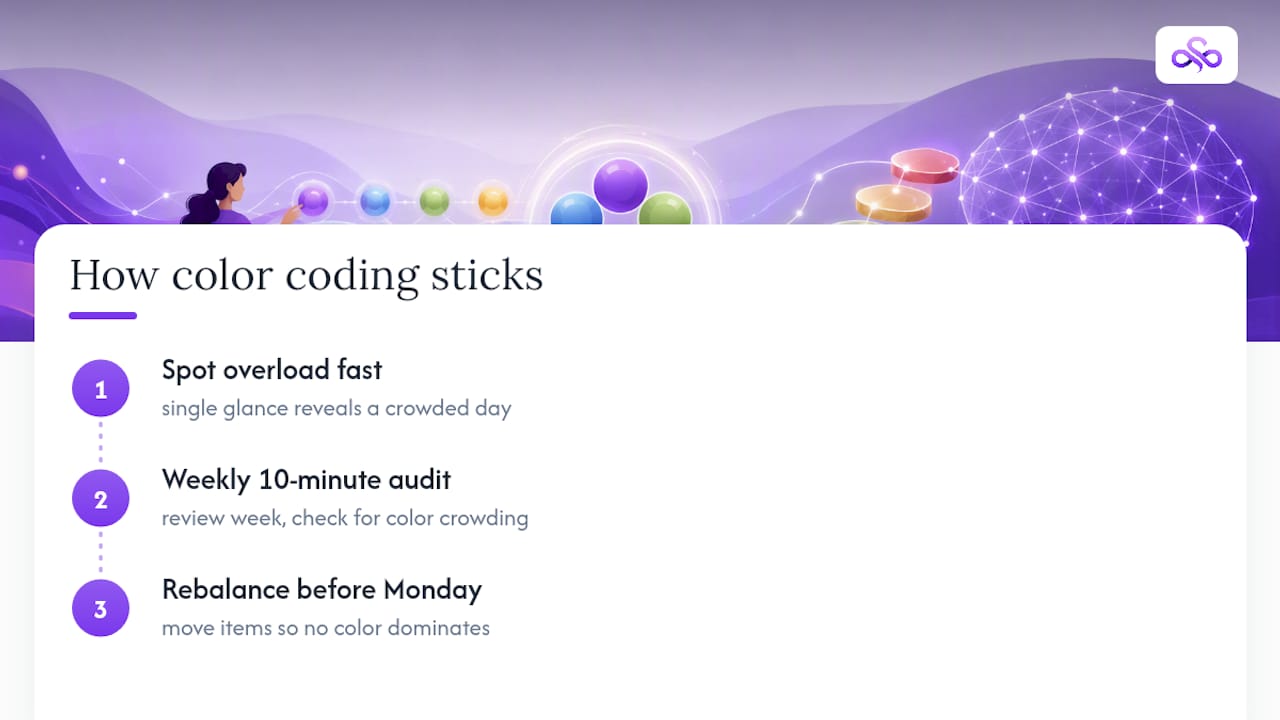
The difference shows up fastest on a bad week: a color-coded calendar lets you spot at a glance that Tuesday is drowning in red before it happens, not after. That single glance is worth more than any productivity app's notification.
The habit that keeps this working long after the initial setup enthusiasm fades is a ten-minute Sunday color audit. Look at the week ahead, check whether one color is crowding out the rest, and rebalance before Monday starts. That small weekly ritual, more than any perfect palette, is what makes color coding stick past the first month.
— Syncronos
A Faster Way to Keep Your Semester Color-Coded
Manually rebuilding your color-coded calendar every time a professor changes a due date gets old fast. Some AI-powered planners can read your syllabi and to-do lists directly, then generate a calendar that adapts in real time as your schedule shifts, so your color categories stay accurate without you touching a single event.
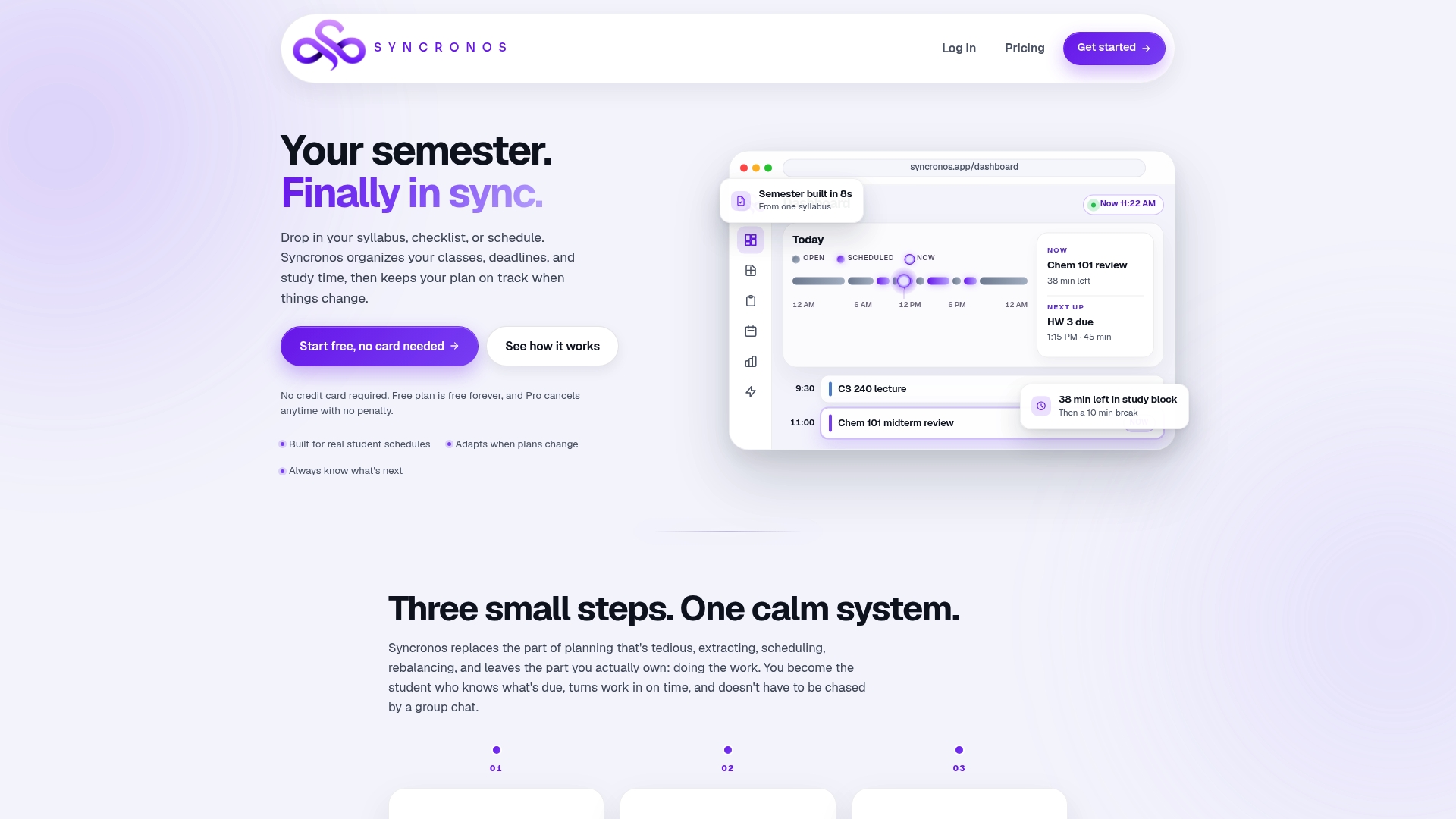
Upload a syllabus once and certain AI planners map your classes, study blocks, and deadlines into a schedule that rebalances itself the moment something changes, whether that's a rescheduled exam or a new assignment. Students juggling multiple courses get a prioritized, color-ready view of the semester without manually recreating sub-calendars every few weeks. If you're setting up a color-coded system for the term ahead, try the AI student planner at Syncronos and let it handle the schedule while you handle the studying.
Sources
- Color-Coded Calendar: Master Your Schedule | Fluidwave
- Calendar Color Coding: Best Colors & How-To Guide 2026
- Calendar Color Coding: Practical Frameworks for 2026
- Calendar Clarity (Chrome extension) — Chrome Web Store