
You can convert any syllabus to calendar events in minutes: upload or paste the document, let an extraction tool pull out dates and deadlines, review the results, then export an .ics file or subscribe to a live calendar feed. Every reputable syllabus-to-calendar tool follows this basic sequence, and the review step is not optional. Skipping it is the single most common reason students end up with wrong exam dates on their phone.
TL;DR:
- Using a syllabus-to-calendar tool requires careful review of extracted events, especially for vague deadlines or week-numbered schedules anchored to the semester start date.
- Most tools support both .ics export and live calendar feeds, with the latter automatically updating for schedule changes but requiring ongoing trust and account access.
- Prioritize manual verification during import to catch duplicate, missing, or incorrectly interpreted dates, and keep academic events on a dedicated, color-coded calendar layer.
- Extracted deadlines should be weighted by grade impact and timing, and buffers should be built before major due dates to facilitate effective study planning.
- Automated tools like Syncronos add value by dynamically rebalancing workload as deadlines shift, reducing manual rescheduling and stress throughout the semester.
Table of Contents
- What a Syllabus-to-Calendar Tool Actually Produces
- How Does Syllabus Extraction Actually Work?
- Step-by-Step: Converting Your Syllabus Into Calendar Events
- .ics Files vs. Live Calendar Feeds: Which Should You Use?
- How to Choose a Syllabus Scheduling Tool
- Fixing the Most Common Syllabus Import Mistakes
- Prioritizing What the Syllabus Extraction Pulled Out
- When the Extraction Misses Something
- Adjusting for Holidays and Schedule Changes
- Tools Built Specifically for Syllabus-to-Calendar Conversion
- Connecting Your Syllabus Calendar to a Study Planner
- Why Adaptive Scheduling Matters More Than Perfect Extraction
- Try Syncronos for Adaptive Syllabus Scheduling
- Sources
- FAQ
What a Syllabus-to-Calendar Tool Actually Produces
A syllabus rarely lists events in a form your phone understands. It buries an exam date in a paragraph about grading policy, or lists a paper due "Week 9" without giving an actual date. Good extraction software untangles that structure and turns it into something your calendar app can read.
Most tools pull out the same core categories:
- Assignments and papers, each tagged with a due date and often a short description.
- Exams and quizzes, including midterms buried in a separate exam schedule PDF.
- Required readings tied to specific class sessions.
- Recurring class meetings, converted into a single repeating event rather than dozens of individual entries.
- Office hours, which many students forget to add manually until week six.
The output typically includes color-coded calendars by course, daily to-do lists compiled from upcoming deadlines, and reminder notifications set ahead of each due date. That structure matters more than it looks. Research on course alignment shows that seeing deadlines in context, next to weekly topics and readings, helps students plan study sequencing more effectively than a flat list of dates ever could, according to CBE—Life Sciences Education.
How Does Syllabus Extraction Actually Work?
Behind the scenes, a syllabus scheduling tool runs through a fairly consistent pipeline, whether it's a polished app or an open-source script.
Accepted inputs usually include PDF uploads, DOCX files, plain pasted text, screenshots, and sometimes direct imports from your school's learning management system. Screenshot support matters more than it sounds. A lot of professors post syllabi as scanned images or slide decks, not clean text files.
From there, the tool passes your document to a parser or an AI model. Open-source projects like Syllabus-Simplify show the pattern clearly: pasted text goes to an AI model, the model returns structured JSON, that JSON gets schema-validated, and only then does the tool serialize it into an .ics file. Date detection and recurring-rule inference happen inside that middle step, where the model decides whether "Tuesdays and Thursdays, 10:00 AM" becomes one repeating event or an ambiguous guess.
- Schema validation catches malformed dates and missing fields before they ever hit your calendar.
- Recurring-rule inference separates one-time deadlines from repeating class sessions.
- Ambiguous items (vague wording, missing years) get flagged for manual review instead of silently guessed.
Pro Tip: If your syllabus uses "Week 3" instead of a calendar date, enter your semester start date before running extraction. Every week-numbered item anchors off that one date, so getting it right up front saves you from fixing a dozen events later.
Step-by-Step: Converting Your Syllabus Into Calendar Events
Here's the workflow that actually works, in order:
- Gather every syllabus for the semester and note your official semester start date. You'll need it for any course using "Week N" instead of real dates.
- Paste or upload each syllabus into your chosen extraction tool and run the extraction pass.
- Review the extracted list line by line. Fix anything marked ambiguous, especially week-numbered entries and vague deadlines like "paper due, see instructions."
- Choose your export method. Download an .ics file for a one-time import, or subscribe to a live calendar feed if the tool supports it.
- Import into Google Calendar, Apple Calendar, or Outlook, ideally into a dedicated course calendar rather than your main one.
- Verify recurring events landed correctly (right days, right time zone) and set reminder lead times, typically 24 to 48 hours before major deadlines.
That review step in step three is where most import problems actually get caught. A tool that surfaces uncertain items instead of quietly guessing at them saves you from silently wrong data sitting on your calendar for a semester.
.ics Files vs. Live Calendar Feeds: Which Should You Use?
Your export choice comes down to a trade-off between control and convenience.
An .ics file is a one-time snapshot. You get a preview before anything touches your existing calendar, and nothing changes after import unless you re-export manually. That preview step is exactly why .ics exports avoid accidentally overwriting events you already have already on your calendar, which matters if you've already added personal appointments to the same calendar.
A subscription feed or API sync stays live. If your professor pushes back the midterm, the change flows through automatically instead of requiring a re-import. The trade-off is that live sync requires ongoing account access and a level of trust in the tool's server, since it's now touching your calendar continuously rather than once.
- Choose .ics if you want full control and don't mind manual updates when the syllabus changes.
- Choose a live feed if your professors tend to shift deadlines mid-semester.
- Google Calendar and Outlook both handle .ics imports and feed subscriptions natively; Apple Calendar handles both too, though feed subscriptions sometimes need the "Add Subscription Calendar" option instead of the standard import button.
How to Choose a Syllabus Scheduling Tool
Not every tool marketed for academic calendar integration handles the same edge cases well. A few things separate the useful ones from the frustrating ones.
Accuracy on week-numbered schedules matters most. Some browser-based parsers explicitly ask for your semester start date up front specifically to handle "Week N" formatting correctly, which is a good sign the tool has actually been tested against real syllabi.
Beyond that, look for:
- A clear preview-and-edit screen before anything commits to your calendar.
- Support for multiple input formats, including screenshots, not just clean PDFs.
- A choice between .ics export and live sync, not just one option.
- A stated privacy model, since some tools parse entirely in your browser while others upload files to a server.
- Reminder and notification settings you can actually adjust, not a fixed default.
Pro Tip: If you're uploading a syllabus that includes sensitive information like your student ID or a professor's personal email, check whether the tool processes files locally in your browser or on a server before you upload anything.
Fixing the Most Common Syllabus Import Mistakes
Most syllabus-to-calendar errors trace back to a handful of predictable causes, and all of them are fixable in a couple of minutes.
Week-numbered schedules drift. When a syllabus specifies "Week 6" instead of a date, the extractor anchors everything to your semester start date. A single-day error in that anchor shifts every single event downstream, so double-check the anchor date before you trust the output.
Duplicate or overwritten events. Always use the import preview screen before confirming. It's the one moment you can catch a duplicate class meeting or an accidental overwrite of something already on your calendar.
Vague deadlines get imported as fact. If a syllabus says "paper due, details TBA," the tool will often flag it, but not always. Manually confirm anything vague before you let an automated reminder fire off a notification you didn't verify.
Clutter from mixing calendars. Keep an academic-only calendar layer, color-coded by course, separate from your personal calendar. It's easier to spot a scheduling conflict when you're not scanning past dinner plans and dentist appointments.
- Confirm your semester start date anchor first, always.
- Use preview before every import, no exceptions.
- Manually verify anything marked TBA or vague.
- Color-code by course and isolate academic events on their own calendar.
Prioritizing What the Syllabus Extraction Pulled Out
An extracted syllabus calendar hands you a full list of dates, but a full list isn't the same as a plan. The real work starts once everything lands on your calendar and you have to decide what actually deserves your attention this week.
Start by weighting deadlines by two factors: how much they count toward your final grade and how far away they sit. A quiz worth 5% due in two days competes for your attention against a term paper worth 30% due in three weeks, and most students default to fighting whatever's loudest right now. That's backwards. Once your syllabus calendar is populated, spend ten minutes tagging each major assignment with its grade weight, pulled straight from the syllabus grading breakdown most professors already publish.
Group by course intensity, not just chronology. A syllabus with weekly quizzes needs a different daily rhythm than one with a single midterm and final. If your calendar tool supports color-coding by course, extend that further by marking high-weight items in bold or with a star, so a glance at the week ahead shows what actually threatens your GPA versus what's routine.
Build in buffer time before big deadlines, not on them. If a paper is due Friday, block working sessions on Tuesday and Wednesday rather than Thursday night. Extracted syllabus events tell you when something is due; they don't tell you when to start, so that planning layer still has to come from you, or from a tool built specifically to forecast workload across your other commitments.
When the Extraction Misses Something
No parser catches everything a professor buries in a syllabus, and knowing where to look manually saves you from a bad surprise in October.
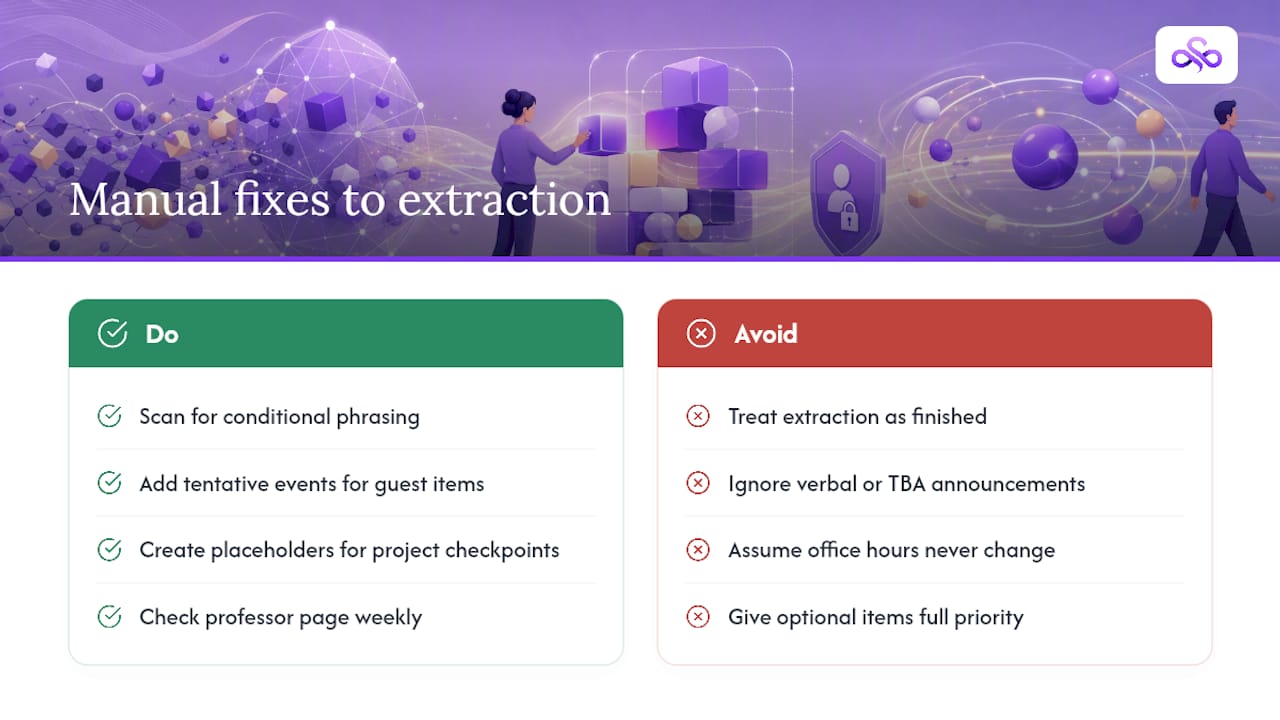
Guest lecture dates, room changes, and pop quiz policies rarely get flagged, because they're often phrased as conditional statements rather than clear dates ("we may have a guest speaker in Week 8"). Scan for these yourself during your first read-through and add them manually as tentative events you can confirm later.
Group project milestones are another blind spot. A syllabus might mention one final project date but skip the intermediate checkpoints your professor announces verbally in class or through a separate LMS post. Add a placeholder event for each expected checkpoint, even a rough one, so it's on your radar before your group chat starts panicking about it.
Office hours often get extracted correctly as a recurring block, but exceptions (canceled office hours during exam week, moved sessions) won't appear anywhere in the original document. Keep a standing weekly check on your professor's course page or email for these updates.
Extra credit opportunities and optional review sessions almost never make it into automated extraction, since they're framed as optional rather than required. If you want them on your radar, add them yourself as low-priority events, so they show up without competing visually with graded deadlines.
The fix for all of this is the same: treat your first extracted calendar as a strong draft, not a finished product, and give it one manual pass focused specifically on anything phrased as conditional, verbal, or "TBA."
Adjusting for Holidays and Schedule Changes
Semesters never run exactly as written. Snow days, professor illness, campus holidays, and the occasional mid-semester syllabus revision all mean your calendar needs periodic maintenance, not a one-time import and forget.
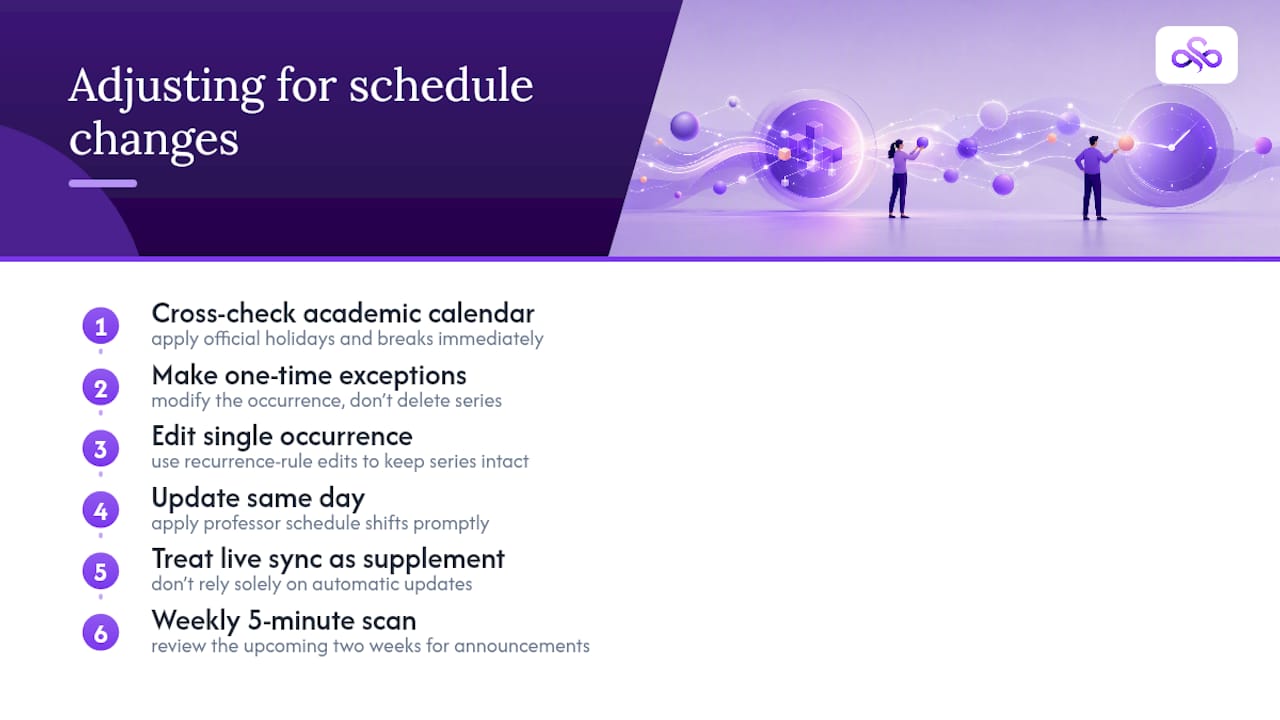
Start with the predictable stuff. Academic calendars publish official holidays and breaks well before the semester starts, so cross-reference your extracted event list against that calendar immediately after import. If a class normally meets Monday and Monday happens to be a holiday, that recurring event needs a one-time exception, not a deleted series.
For recurring class events built on proper recurrence rules, most calendar apps let you edit a single occurrence without breaking the whole series. That's specifically what recurrence-rule based events are built for. Editing one Tuesday session to cancel it does not touch the other 14 Tuesdays in the series, which is a real advantage over calendars where every class session got imported as a separate standalone event.
When a professor announces a schedule shift mid-semester (a pushed-back exam, a swapped reading order), don't wait to batch your updates. Go into your calendar the same day and adjust the specific event. If you're using a live sync feed rather than a one-time .ics import, some tools will pick up syllabus revisions automatically, but plenty of professors post changes verbally or through an LMS announcement that no extraction tool can see. Treat any live-sync convenience as a supplement to manual vigilance, not a replacement for it.
Build a five-minute weekly habit: scan the upcoming two weeks on your calendar against any new announcements from your professors. It's a small enough task that it won't feel like a chore, and it catches problems before they become missed deadlines.
Tools Built Specifically for Syllabus-to-Calendar Conversion
A growing category of apps exists purely to solve this one problem, rather than treating it as a side feature of a general planner.
Browser-based converters tend to focus on a single clean workflow: upload or paste, extract, preview, export. Tools in this category, like Calfeed, specifically prompt for your semester start date to resolve week-numbered schedules, which is the detail that separates a genuinely useful converter from one that produces confidently wrong dates.
Other tools focus on recurring event handling using standard calendar recurrence rules (RFC 5545), the same underlying standard your calendar app already understands. Doc2Calendar builds on this to turn a weekly class meeting into a single recurring series instead of a dozen duplicate entries, which also makes later edits far simpler since one change updates the whole series at once.
Some tools lean toward privacy by running extraction entirely in your browser rather than uploading files to a server, an approach worth considering if your syllabus contains identifying information you'd rather not send anywhere. Others trade that local-only model for account-based storage and features like grade tracking or daily to-do generation, which app listings for tools like Due Gooder highlight as standard features alongside calendar sync.
No single tool wins on every axis. The right pick depends on whether you value privacy, live sync, or deeper integration with the rest of how you plan your week.
Connecting Your Syllabus Calendar to a Study Planner
Getting deadlines onto your calendar solves half the problem. The other half is figuring out when you'll actually do the work those deadlines represent, and that's where a plain calendar starts to show its limits.
Start by treating your extracted syllabus calendar as the source of truth for deadlines, then layer a task management or study planning app on top of it rather than trying to make one tool do both jobs. Most modern planners can read from a synced or imported calendar and generate study sessions backward from a due date, rather than you manually blocking time yourself.
The practical integration usually looks like this: import your syllabus events first, either as an .ics file or through live sync. Then connect that same calendar to your study planner, either through a shared calendar subscription or, in some apps, a direct sync feature. The planner sees your exam dates and paper deadlines, and from there it can suggest or auto-generate study blocks in the open time around your existing commitments.
The advantage over managing everything manually shows up when something changes. If a professor moves an exam, you update it once on your calendar, and a planner tied into that same feed can adjust the study blocks it had scheduled around the old date. Doing that adjustment by hand across a dozen deadlines is exactly the kind of manual busywork this whole workflow is designed to eliminate. The goal isn't just getting dates onto a calendar. It's making sure the calendar actually tells you what to work on today, not just what's due eventually.
Why Adaptive Scheduling Matters More Than Perfect Extraction
Most conversations about syllabus tools focus entirely on extraction accuracy, and that focus misses the harder problem. The real value shows up in what happens after week three, when a professor moves the midterm, a group project checkpoint gets added mid-semester, and your static calendar just sits there, unaware anything changed.
A calendar full of correctly extracted events is still just a list. What actually reduces stress is a system that rebalances study blocks automatically when a deadline moves, instead of leaving you to manually shuffle everything by hand. That's the gap Syncronos was built to close: it extracts from your syllabus the same way other tools do, but it also keeps rebalancing your study blocks and workload forecast as things shift, so a moved exam doesn't quietly break the plan you built three weeks ago.
A prioritized, forecasted view of your workload catches the problem a flat calendar can't: the week where four things collide that looked fine in isolation. That's the difference between a tool that imports your syllabus and one that keeps working for you after the import is done.
— Syncronos
Try Syncronos for Adaptive Syllabus Scheduling
Some syllabus tools turn your syllabus into a calendar, and some also adjust that calendar as your semester changes by rebalancing study blocks automatically when a deadline shifts, reducing manual rescheduling.
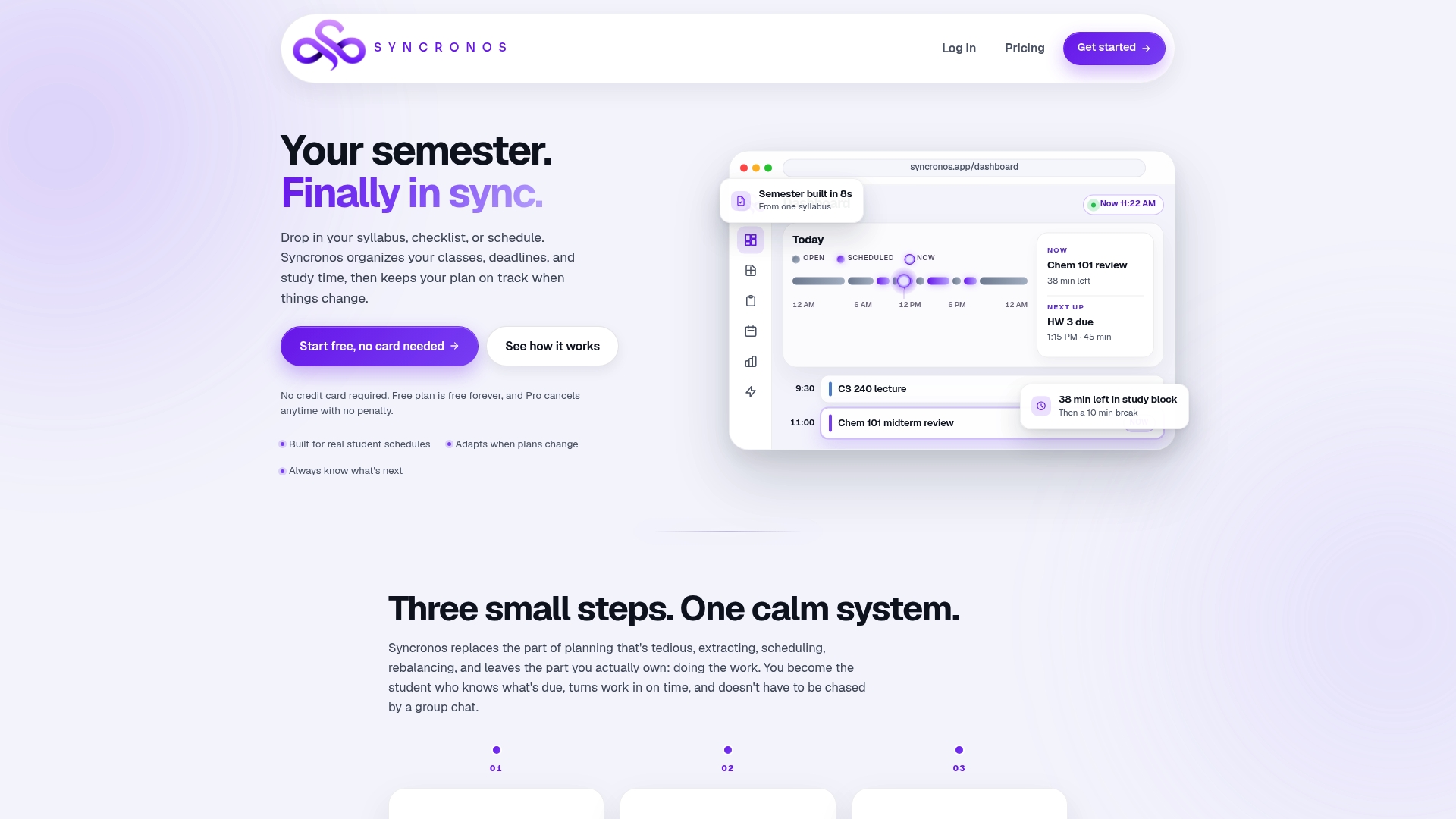
Upload or paste your syllabus on the Syllabus to Calendar page and see how the extraction and adaptive scheduling work together before you commit to anything. Once your deadlines are in, the Exam Study Planner maps study blocks around them automatically, adjusting the plan whenever a due date moves. A free tier lets you test the core import and scheduling features without a subscription, so you can judge the fit for your own course load before deciding whether to upgrade.
Sources
- kumaranlenin/Syllabus-Simplify (GitHub)
- How to choose between iCal and API sync (Guesty blog)
- Calfeed — Syllabus to Calendar Converter
FAQ
How Do I Import a Class Schedule Into My Calendar?
Upload or paste your syllabus into a syllabus-to-calendar tool, review the extracted dates for accuracy, then export an .ics file or subscribe to a live feed. Import that file or feed into Google Calendar, Apple Calendar, or Outlook using each app's standard calendar import option.
What's the Best Way to Organize a Syllabus Before Importing It?
Before uploading, note your semester start date if any deadlines are listed as "Week N" rather than actual dates, since extraction tools anchor those items to that one reference point. Also flag any vague deadlines like "TBA" so you remember to confirm them manually after extraction.
How Do I Put My Class Schedule Into a Digital Calendar Without Duplicating Events?
Always use the import preview screen before confirming, which shows you exactly what will be added without overwriting anything already on your calendar. Choosing an .ics export rather than a live sync gives you the clearest one-time preview if duplication is a concern.
What Is the Best Syllabus Organizer App?
The best fit depends on whether you want a simple one-time extraction tool or an ongoing planner that adjusts as your semester changes. Syncronos focuses on the second category, extracting syllabus events and then rebalancing study blocks automatically through its AI study planner whenever a deadline shifts.
Do I Need to Manually Fix Anything After Automated Extraction?
Yes. Even accurate extraction tools flag ambiguous items like vague deadlines or week-numbered entries for manual review, and skipping that review step is the most common source of wrong dates on an imported calendar.