

You can see your to-do list in your calendar in three practical ways: enable a calendar integration, time-block tasks as events, or automate task-to-event syncs. If you have a handful of tasks with real deadlines, start with a native integration. If your week is packed with study sessions or deep work, time-block manually. If you add tasks constantly across apps, automate the transfer.
TL;DR:
- Native calendar integrations work best for tasks with fixed due dates, but two-way syncs can risk task deletions if not set up carefully.
- Time-blocking offers the most realistic schedule for deep work and lengthy study sessions, especially when buffers and duration estimates are accurate.
- Automation simplifies repetitive task entries but requires precise filters and field mapping to avoid duplicates and missed events.
- Manual updates are still necessary for shifting deadlines, making adaptive tools like Syncronos valuable for automated rescheduling.
- Prioritizing realistic task durations, accurate buffers, and flexible scheduling methods yields better adherence than relying solely on initial setup choices.
Table of Contents
- Which Method Fits Your Workflow: Integration, Time-Blocking, or Automation?
- How Do I Sync My To-Do List With Google, Outlook, or Apple Calendar?
- What's the Best Way to Time-Block a To-Do List Into a Calendar?
- How Do I Automate Tasks Into Calendar Events?
- Quick Tools and Templates for Turning a List Into a Weekly Schedule
- Why Adaptive Scheduling Matters More for Students Than Anyone Else
- What the Research Actually Supports About Task Scheduling
- Ready to Skip the Manual Rebuild? Start With Syncronos
- Sources
- FAQ
Which Method Fits Your Workflow: Integration, Time-Blocking, or Automation?
Each approach solves a different problem, and picking the wrong one is why most people quit after a week.
- Calendar integrations (Google Calendar, Outlook, Apple Calendar) work best for tasks that already have due dates. They're low effort but only show tasks as reminders or all-day blocks, not scheduled time.
- Time-blocking works best when you need to protect focus hours, like long study sessions or writing projects. It takes more upfront thought but gives you the most schedule realism.
- Automation (IFTTT, Zapier, ICS export) works best for repetitive tasks and multiple task sources feeding one calendar. It saves manual entry but adds a small delay between task creation and the event appearing.
If you're juggling short errands, an integration alone is enough. If you're managing long study blocks, time-blocking beats any automatic sync because only you know how long a task really takes. And if you're a student pulling deadlines from five different syllabi, automation only works when someone estimates task duration accurately, which is where most manual systems quietly fail.
How Do I Sync My To-Do List With Google, Outlook, or Apple Calendar?
Native calendar-task integration is the fastest starting point because it requires no third-party tools. Here's how the setup generally works across the three major platforms.
- Open your task app's settings and locate calendar or account linking (Google Tasks syncs automatically into Google Calendar; Microsoft To Do surfaces inside Outlook's My Day pane).
- Grant calendar permissions when prompted, then choose whether to sync tasks into your main calendar or create a separate "Tasks" calendar layer.
- Toggle on task visibility inside the calendar view, then confirm tasks with due times appear as blocks and tasks without times appear as all-day items.
- Check that each task includes a date, and ideally a time and rough duration, since tasks missing both usually get dropped to the bottom of the day with no visible time slot.
Outlook's My Day feature is the clearest example of this pattern. It lets you see calendar events and to-do items side by side without leaving your inbox, according to Microsoft's own support documentation.
One detail trips people up constantly: sync direction. One-way sync pushes tasks into your calendar but won't reflect edits you make later on the calendar side. Two-way sync updates both, but it also means deleting a calendar event can delete the original task. Know which one you've enabled before you start reorganizing your week.
If tasks stop appearing, reauthorize your account connection first, then force a manual resync. If that fails, check your calendar's subscription settings. A "Tasks" calendar layer that's been toggled off will hide every synced item without any error message.
Pro Tip: Before troubleshooting a sync problem, check whether the task actually has a date attached. Most "missing task" complaints are really "task with no due date" complaints.
What's the Best Way to Time-Block a To-Do List Into a Calendar?
Time-blocking means giving every task a start time and an end time, the same way you would a meeting. This is the method that actually prevents overload, because a floating checklist item never shows you how much of your day is already gone. Treating a task as a fixed-duration event, instead of an open-ended entry, is what lets you spot real availability before you commit to more work, a distinction duration-based scheduling tools are built around.
Start with a rough duration map:
- Quick admin tasks (emails, replies, single errands): short blocks
- Medium tasks (reading a chapter, drafting an outline): moderate blocks
- Deep-focus work (writing a paper, studying for an exam): longer blocks with no interruptions
A useful weekly layout puts deep work in the morning, meetings and errands midday, and a short review block in the evening to reset for tomorrow. Color-code by category (study, work, personal) so a glance at the week tells you where your hours are actually going.
Buffers matter more than most planners admit. Leave a short transition gap between blocks, and cap your total deep-focus hours per day realistically rather than optimistically. Time-blocking guidance consistently points to buffer time as the difference between a schedule that holds and one that collapses by Wednesday.
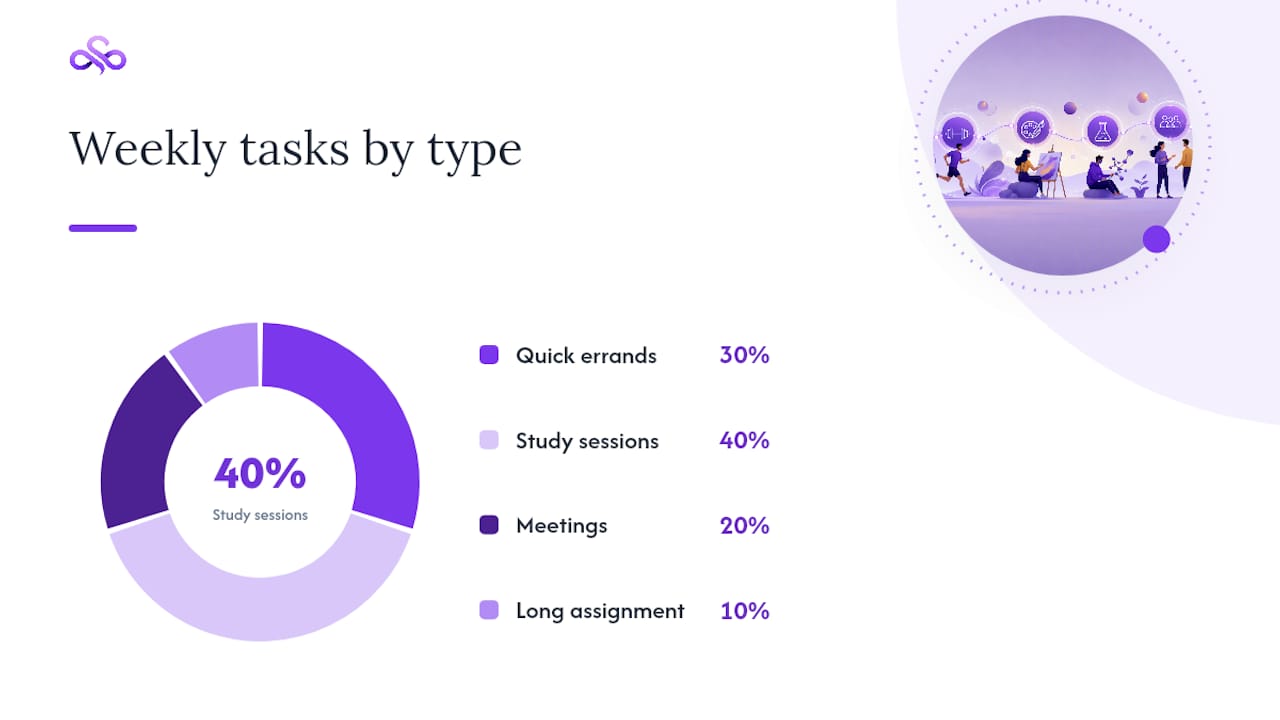
Take ten weekly tasks: three quick errands, four study sessions, two meetings, one long assignment. Spread across five weekdays with buffers between each, that's a realistic, non-overloaded week, not a stacked list pretending to be one.
How Do I Automate Tasks Into Calendar Events?
Automation removes the manual step of copying a task into your calendar, but it only works well when you set filters carefully. The standard flow is simple: a new task triggers an action that creates a calendar event, carrying over the title, due time, estimated duration, and any tags.
- Pick a trigger, like "new task created" in your task app, and connect it to an action, like "create Google Calendar event," using a service like IFTTT. IFTTT's applet library shows this exact pattern for Todoist-to-Google-Calendar syncing.
- Map the fields you actually want to appear on the event: title, due time, duration, and tags for color-coding.
- Check the polling frequency. Free automation tiers often check for new tasks only occasionally, while paid tiers poll far more frequently, a gap IFTTT documents directly.
- Test on a throwaway task first, in a separate calendar, before connecting your main one.
Automation shines for repetitive, recurring tasks. It creates clutter when every quick task spawns its own event, so filter by tag or project rather than syncing everything. Untested automations are also the top cause of duplicate events, since a broken filter can fire the same trigger twice.
Quick Tools and Templates for Turning a List Into a Weekly Schedule
Before importing anything, clean up your list: shorten vague titles, attach a rough duration to each item, and assign a color tag by category.
- Export your list as an ICS or CSV file, then import it directly into Google Calendar, Outlook, or Apple Calendar through their standard import menus.
- Try a no-signup timeline tool if you just want to see tasks laid out by time before committing to a full calendar import, an approach browser-based to-do timelines support well for quick drafts.
- Use a visual schedule builder that exports a weekly ICS file for a fast week-at-a-glance view without disrupting your existing task app, a shortcut Morgen's schedule builder is built around.
- Keep a simple one-page template: five weekday columns, morning/midday/evening rows, color key at the bottom.
Why Adaptive Scheduling Matters More for Students Than Anyone Else
A syllabus rarely stays fixed for a full semester. Extended deadlines, rescheduled exams, and added readings pile up fast, which is exactly the mismatch Syncronos was built to close.
- Syncronos reads syllabi, checklists, and to-do lists directly, then extracts deadlines and generates scheduled study blocks automatically.
- When a deadline shifts, Syncronos rebalances the surrounding study blocks instead of leaving you to manually rebuild your week.
- Students juggling several courses with overlapping deadlines benefit most, since manual time-blocking breaks down fastest under that kind of volume.
The syllabus-to-calendar feature is the clearest entry point if you want to see this in action, and the assignment planner shows how it handles ongoing coursework.
What the Research Actually Supports About Task Scheduling
Most productivity advice treats time-blocking like a one-time setup: block your week once, done. That's backwards. The research consistently points to buffers and duration accuracy as the real differentiators, not the scheduling method itself. A perfectly time-blocked calendar with unrealistic durations fails just as fast as no calendar at all.
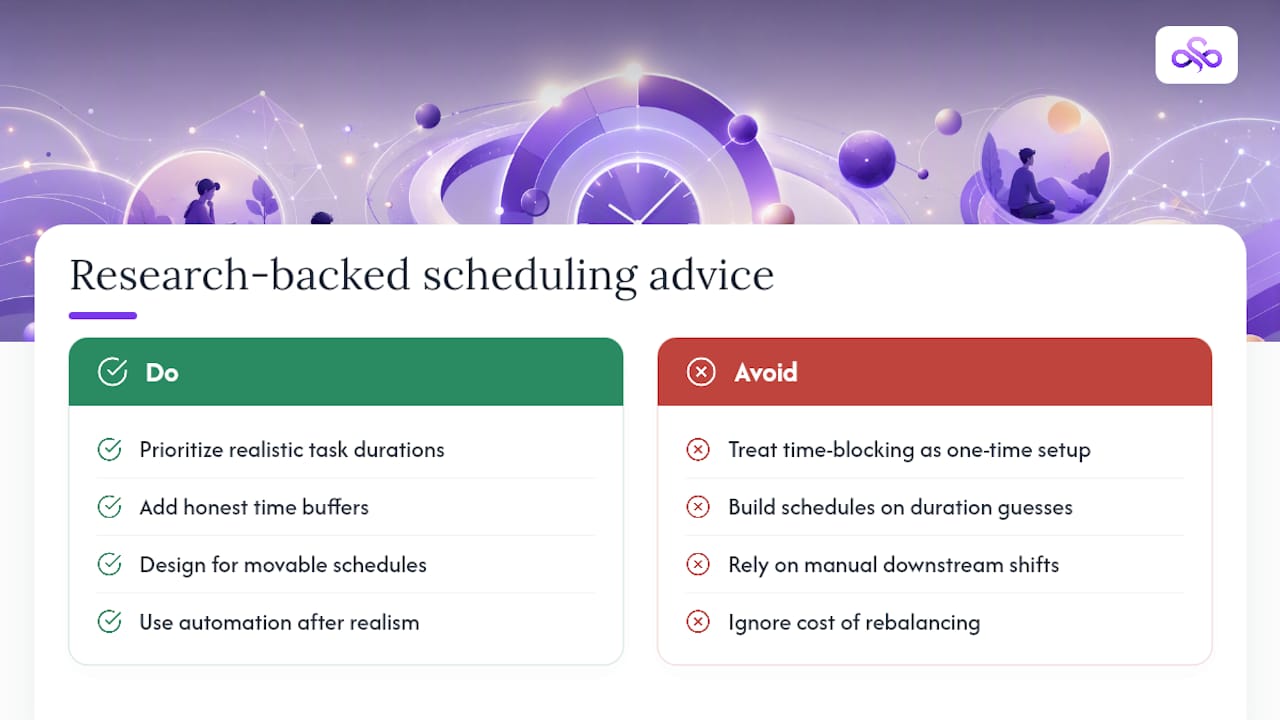
Conventional advice also underplays how much manual rebalancing costs. Every time a deadline moves, a student using pure time-blocking has to manually shift every downstream block by hand. That's not a minor inconvenience. It's the exact friction that makes people abandon calendar systems by week three.
Prioritize duration realism first, before you worry about which app or automation you use. A calendar full of accurate time estimates and honest buffers will outperform a beautifully color-coded schedule built on guesswork. Automation and adaptive tools matter most once you've already accepted that your schedule needs to move, not once.
— Syncronos
Ready to Skip the Manual Rebuild? Start With Syncronos
Manual syncing and automation scripts work, but they all share the same weakness: when your deadlines shift, you're the one rebuilding the week. Some scheduling tools automatically rebalance study blocks and deadlines when syllabi change, instead of requiring manual rebuilding.
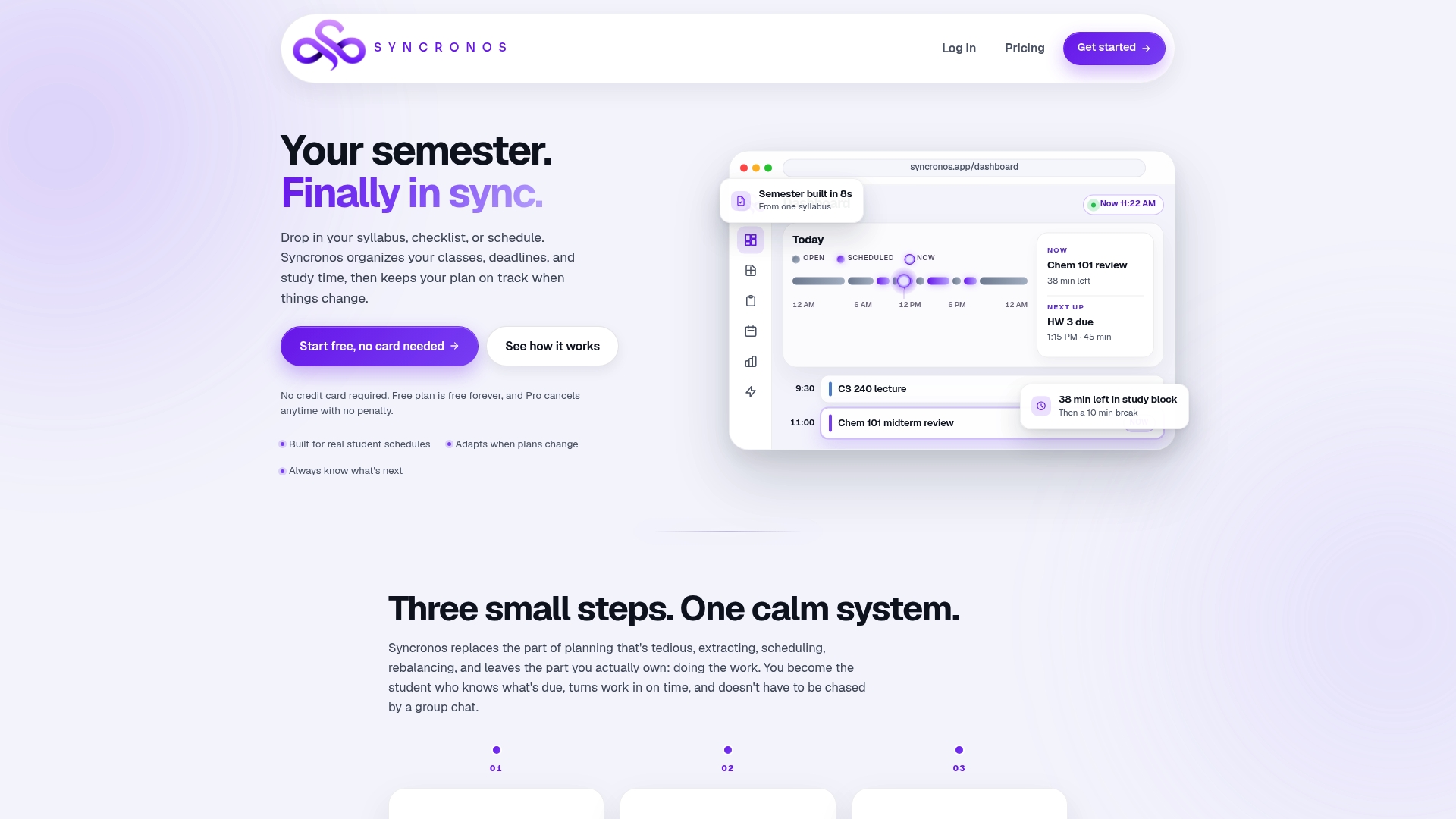
Certain apps help students turn syllabi, checklists, and to-do lists into a scheduled calendar, then adjust it as due dates change. If you want to see the full feature set before committing, the AI study planner page walks through how the scheduling logic works. Ready to try it? Start with the Free plan, which includes limited manual and AI-powered planning at no cost, or move straight to the Monthly plan at $8.99 per month or the Yearly plan at $55.99 per year for unlimited AI schedule generation and rebalancing. The fastest first step is simple: upload one syllabus and let Syncronos build your first week.
Sources
FAQ
What Is the Best Free Calendar App That Includes a To-Do List?
Google Calendar with Google Tasks is the most widely used free combination, since tasks sync natively into the calendar view without extra setup. Microsoft To Do paired with Outlook's My Day pane is a close second for anyone already inside the Microsoft ecosystem, as Microsoft's support documentation shows.
Can I Add a To-Do List to Apple Calendar?
Yes. Apple's Reminders app syncs directly with Apple Calendar, so reminders with due dates and times appear as calendar entries automatically. For tasks from other apps, exporting an ICS file and importing it into Apple Calendar works as a manual alternative.
Does Microsoft To Do Have a Calendar View?
Microsoft To Do itself doesn't have its own full calendar grid, but its My Day feature displays tasks alongside your Outlook calendar events in one pane. That combined view is what most people actually mean when they ask for a "calendar view" in To Do.
How Do I Use My Calendar as a To-Do List?
Convert each task into a timed event instead of leaving it as a checklist item, giving it a start time, an estimated duration, and a buffer before the next block. Tools like Syncronos automate this conversion directly from a syllabus or task list, generating scheduled blocks instead of requiring manual entry for every item.
Should I Automate Task Syncing or Do It Manually?
Automate repetitive, recurring tasks with tools like IFTTT, since manual entry for the same task type every week wastes time. Reserve manual time-blocking for high-stakes or one-off tasks where duration accuracy matters more than speed.